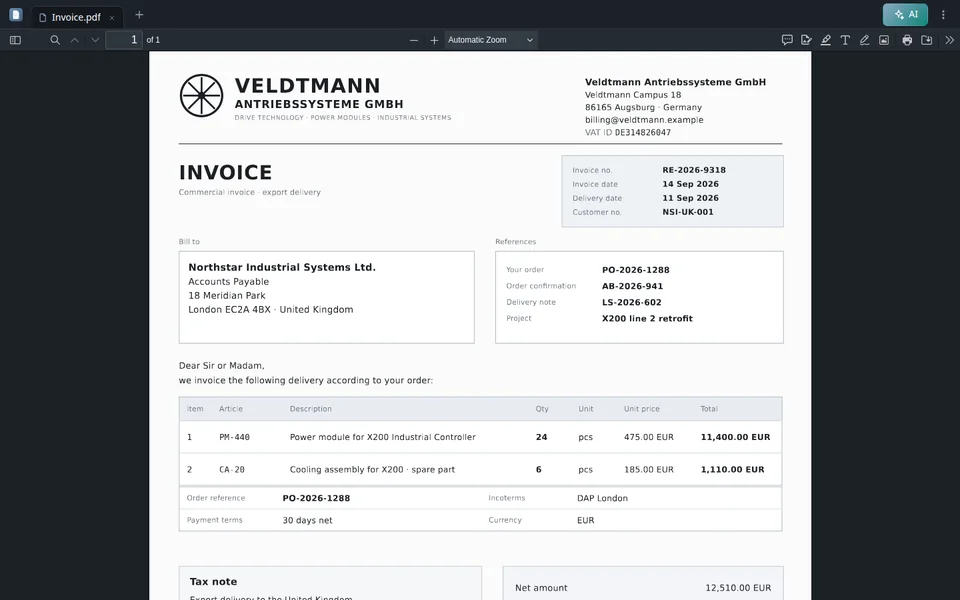










The demands on a DMS, a document management system, have grown enormously or rather naturally in recent years. What started out as a database, in which mostly originally analogue documents were digitized by scanning and stored, has become comprehensive office software, which today takes on the main part of an office's administrative tasks.
But what is the standard, what can the customer expect from a DMS?
In the current article we will show you which important functions a document management system must have. This can be explained point by point using the PaperOffice AI-DMS.
Before we get into the benefits, let's answer the following question:
What is a document management system?
Capturing, distributing, archiving and indexing of documents are integral process components of day-to-day work in many organizations. And not to forget: deleting and searching for documents.
This means that companies from a wide variety of industries accumulate important documents every day: pleadings, contract documents, drafts, external letters, research, expert opinions and much more. These do not only arrive by post, many documents also arrive by email.
All of these documents need to be digitized if they arrive in paper form, require structured filing, task and workflow assignment, and need to be immediately available on demand.
It is very important that important deadlines are met and that legal measures are taken to store documents.
This is not only time-consuming, but also puts an unnecessary strain on your wallet.
How can the introduction of a document management system help me and my company?
The introduction of a document management system, DMS for short, helps you to have a clear structure in your documents and helps you to cope with the flood of information.
DMS also stands for document management software and is intended to manage documents, especially digital documents, which includes the conversion from analogue to digital. PaperOffice AI is such software: a platform that runs in the browser.
PaperOffice AI eliminates time-consuming bottlenecks and creates a clear overview of important documents such as contracts or letters by managing them digitally in your DMS in the future.
PaperOffice AI does not differentiate between the types of documents, regardless of whether you need help with managing client contracts, pleadings, fee statements, judgments and e-mail correspondence: thanks to the document management system, your previous processes in your company or organization are digitized, making them more efficient, transparent and significantly more flexible.
The scanned and digital documents can be found, edited, saved, distributed, tagged and forwarded in seconds using PaperOffice AI. The data from the documents can be automatically recognized and read out and passed on to external systems such as CRM or ERP.
You are certainly aware that analogue documents are simply no longer up to date. However, you also see the complications involved in converting the existing analogue archive into digital data. Because digitizing documents is more than just a trend. In fact, it is now a prerequisite for remaining competitive and up-to-date with all the other companies in the same sector.
Therefore, it makes sense to introduce a document management system into your company.
Now that we have clarified what a DMS is and what introducing one brings, we come to the actual question of this article:
Which 7 important functions does your document management system have to fulfill?
Function 1: Location. Save in a digital archive
The most important and first function of every document management system is the bringing together of all documents and their information. This is how the archiving and administration of the scanned and digital documents as well as emails happens in a database, a digital archive so to speak.
PaperOffice AI stores all information centrally: encrypted in PaperOffice’s own data center in Navarra (Spain, EU) or, if you prefer, on your own storage, such as a QNAP or Synology NAS or your own server (Bring Your Own Storage). You work in the app in your browser and on your smartphone, in the office as well as from your home office. If you want to run the database entirely on your own premises, even without internet, use the Windows program PaperOffice Classic, which stores all information in a MariaDB database on your NAS or server.
It makes no difference what type of document it is.
All document types can be stored centrally in the DMS and are therefore accessible to all departments and business areas.
All company-relevant documents are stored centrally and can be found quickly by all employees.
Where should the digital archive be located?
For most companies, PaperOffice’s data center in Navarra (Spain, EU) is the simplest option: storage, backup and processing all run there on PaperOffice’s own hardware. If you want to keep the files on your own premises, you connect your NAS, for example from Synology or QNAP, or your own server as storage (Bring Your Own Storage, BYOS).

With BYOS, the files stay encrypted on your own NAS or server, connected via SFTP. PaperOffice keeps the index, metadata and AI results in its own EU data center. A second storage system can act as a mirror: if one fails, the other takes over.
Don't want to use a server? No problem.
Why a NAS is ideal for document archiving
You connect a NAS (network attached storage), a storage device with a network connection, to PaperOffice AI via SFTP as your own storage: the files stay encrypted on your NAS, while AI processing runs in PaperOffice’s data center in the EU. Thanks to the NAS backup function, the documents are also protected in the event of a hard drive crash.
Function 2: Easy retrieval of documents. Search and Find
PaperOffice AI reads incoming documents, including scans and photos, with its own AI-OCR in over 120 languages and converts them into searchable digital documents with a text layer.
At the same time, PaperOffice AI saves the date and time, a version number and keywords, which the search uses to find documents even if the person searching only roughly remembers the content of the document.
To make it easier, PaperOffice AI shows your documents in several views, from list to timeline. Everything you save in PaperOffice AI is automatically fully text-recognized by AI-OCR and indexed for search: in full text and, from the Premium processing depth, also semantically. Scanned PDFs and photos are found just like digital documents.
Automatic language detection: PaperOffice AI detects the document language automatically and reads documents in over 120 languages. Semantic search works across languages: a German query also finds the English invoice.
Tip
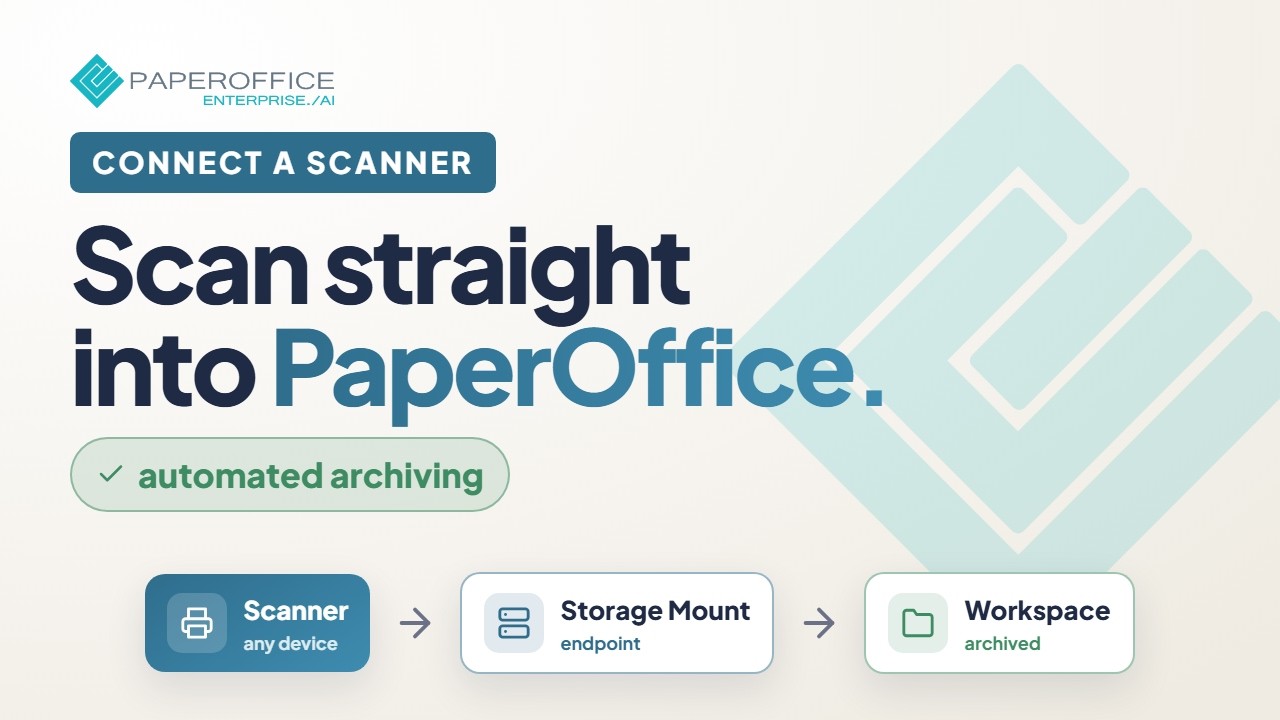
The video in the PaperOffice Academy shows how to connect a scanner so that your scans are archived automatically:
The long-term readability of the stored documents
First of all, PaperOffice AI stores every document encrypted: every file is split into pieces that are encrypted individually with AES-256 (ChunkCrypt). Data is transferred via TLS 1.3.
You can download your documents at any time or convert them into common formats with PDF Studio. For long-term archiving, PDF Studio creates PDF/A: fonts are embedded and external dependencies are excluded. This keeps the documents readable in the future.
Function 3: Ensuring legal retention periods
One of the most important aspects when storing documents via a document management system is compliance with legal regulations or the requirements of the GoBD.
The abbreviation GoBD stands for the "Principles for the proper management and storage of books, records and documents in electronic form and for data access".
With audit-proof, encrypted storage, PaperOffice AI provides the building blocks: versions, an immutable log of every change (audit trail), WORM write protection and retention periods per document type. This is the basis for GoBD record-keeping.
The term versioning is not a foreign word within a document management system (DMS). The need to use a document management system with audit-proof version control is clearer than ever before.

Versioning makes all changes traceable
The term versioning can be explained very easily: Overall, it is about the functionality used to record changes to documents or files. Document change can be detected and saved as a shadow copy as a new document version.
Tip
The feature tour in the PaperOffice Academy shows how to set up retention periods and WORM protection per document type:
Ensure immutability
Each document change places a "newer" version of the document in a corresponding archive. The logging makes changes transparent and traceable at all times. At this point, the subsequent viewer knows when and by which editor the change to the document was made. This gives you an overview of the entire document lifecycle. Versioning can be done automatically or manually.
In order to ensure revision security, all details of a change to documents and files must be clearly traceable. It must be ensured that only authorized employees can make such a change. But it is just as important to know years later which employees changed what and when.
Versioning as the basis for GoBD record-keeping
PaperOffice AI stores new revisions of a document as versions and logs every change in the audit trail. This lets you track what content the document had at what time and who changed it. Together with WORM write protection and retention periods, this is the basis for GoBD record-keeping. Whether your processes as a whole are sufficient is for your tax advisor to assess on the basis of your procedural documentation.
Tip
The overview film in the PaperOffice Academy shows how to connect a Synology NAS to PaperOffice AI via SFTP as your own storage:
In PaperOffice’s data center, your documents are stored and backed up. With BYOS, a second storage system can act as a mirror that takes over automatically if one fails. Both help keep your records available throughout long retention periods.
Function 4: Automatic detection and keywording
PaperOffice AI is equipped with an AI that independently recognizes information in your document and assigns it automatically.
AI processing is an integral part of the PaperOffice AI-DMS and every added document is:
- read by AI-OCR in over 120 languages, with text layer and layout
- classified: document type, language, sender and folder suggestion
- mined for data such as amounts, dates and contact details through IDP extraction
- indexed and made searchable
- No matter what and no matter from which source: scanner, mobile app, email or upload!
This means that PaperOffice AI provides you with your own powerful search for all your information: it finds terms in the full text like a classic search engine and, with semantic search, also searches by meaning. This lets you find documents even if you do not know the exact terms.
You describe your own document types in natural language, without training and without templates. From the next document on, PaperOffice AI recognizes the type automatically, which in turn can trigger workflows, filing rules and retention periods.
IDP extraction recognizes the most important values in the document and fills in the fields for you. You can then check the values and correct or add to them if necessary, optionally as a fixed human review step (human-in-the-loop). This process can run manually or automatically in the background.
Function 5: Automate document capture
Connectors take over what is holding you back: they monitor folders and email mailboxes automatically in the background according to your specifications and pull new files into the workspace.
- Connect scanners and copiers
Scanners, copiers and multifunction devices save their scans to a folder on your NAS or server or send them by email. As soon as a new file appears there, the connector pulls it into the workspace and processes it. - Monitor several sources
Create connectors for different folders, buckets and mailboxes and define the file filter, the interval and what happens to the source file after the import: keep it, move it to another folder or delete it. - AI processing without templates
Every imported file runs through the processing depth of the target workspace, such as AI-OCR, classification and IDP fields. The relevant document content is recognized and the document is tagged automatically. This also works with contacts: the sender is recognized, and from the Premium processing depth on, parties are registered and linked to the document! - Archive mode and workflows
For pure bulk imports, choose the Archive processing depth: documents are only filed and can be processed later by an agent.
You define which workspace new files land in and let workflows and webhooks react to the result automatically.
Function 6: User management and access permissions
In PaperOffice AI, users only see the workspaces they are authorized for. Every workspace is a separate security space with roles, access lists and an audit trail.
You can also specify which users are allowed to do what, and divide them into fixed user groups and departments so that you can control who can see where and what.
- Rights per workspace
Users and groups receive read, write or admin rights per workspace. Each user only sees what they are authorized for and may only do what you have defined beforehand. - Protect sensitive records
Business workspaces add a workspace password, SMS or two-person approval and WORM write protection. Compliance workspaces also use an IP whitelist, mandatory 2FA and watermarks. - Groups and departments
Assign users to freely definable groups and departments, which you can also use for workflows and tasks. - Multi-level definable user rights
You decide who exactly has access to which workspaces and functions. The rights apply equally in the web app, the mobile app, via API and over MCP, including for AI agents.
Function 7: Powerful workflow system
A big problem in the past, but still today, is duplication of files due to multiple storage and ambiguity regarding the processing status of documents or projects. PaperOffice AI provides workflows with task assignment for this purpose, which also log every run centrally. Whether project work or document processing.
Digital workflows automate your work processes: Once defined, everything proceeds automatically: assign a predefined workflow to a document or let the recognized document type trigger the workflow. In the AI builder, you describe a workflow in a single sentence. Email notification included!
Every employee stays up to date through the PaperOffice AI workflows: tasks with due date and responsibility land in the inbox and in the mobile app. Of course, versioning also applies here.
- Flexible workflow definitions
Workflows branch by fields, amounts, confidence, parties or check results and thus chain subsequent steps and processes. The model plans the next steps, while your rules remain the guardrails. - Responsibility and due date
Determine whether a user or an entire department can complete the task. PaperOffice AI automatically places the task in the inbox of the person responsible. - Full Control
If necessary, workflows adjust the document status automatically for various events according to your specifications and even send notification emails.
Be sure to avoid this error
While large companies have long appointed digitization officers who deal with the topic of converting analog documents full-time, small and medium-sized companies usually lack human resources, especially since appropriate professional qualifications are required.
However, this is a common mistake and leads to bad investments, because many manufacturers take advantage of this ignorance.
The paperless office in 5 steps
Tip
Our guide to the paperless office describes how to implement the paperless office in 5 steps and digitize your company.
Which scanner to use for DMS?
To scan bound documents, a sheet-fed scanner with a flatbed unit and at least 300 dpi is recommended. The scanner should have a scan-to-folder or scan-to-email function, so that scans reach PaperOffice AI automatically through a connector. We have had good experiences with Fujitsu ScanSnap scanners, which work very reliably.
What is the best way to archive documents?
Paper documents should generally be scanned in PDF/A format and then saved in a DMS document management software - or directly if the software supports this or automates it, e.g. through monitoring.
Can I throw away original documents?
If you are using decent software that gets regular updates and have a data backup strategy, the answer is YES for non-critical documents. Everything that could legally require the original should also be kept in the original. In PaperOffice AI, for example, you can record where the original is kept as a custom metadata field on the document.
Stay innovative
The term document management includes much more than one might initially imagine. The introduction of a document management system in your company is now a prerequisite for the efficiency and success of your company. The need for digitization is now an important aspect for everyone.
The above list of the 7 functions is by no means complete: depending on the area of application, only your own creativity and professionalism set the limits! If the digitization of the analogue archive is considered from these points of view and a counter-calculation is made, it becomes clear that the effort is worthwhile and that it should be considered like, for example, an investment in a new, more modern and faster machine.