


Scan, Sign & AI Chat
Mobile App
The mobile app pairs with your account via QR code and brings scanner, signature, chat and documents to your phone.
DownloadGuidesPDF · EN20 pages
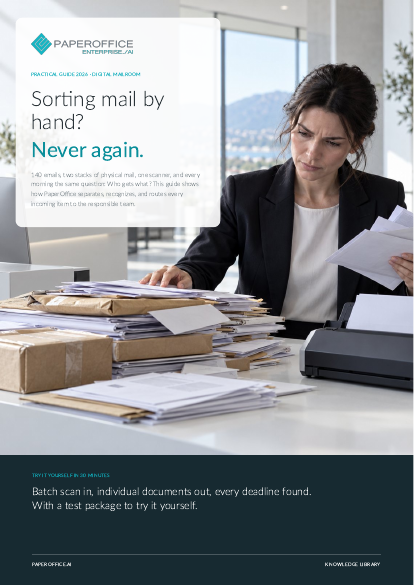
Sorting mail by hand? Never again. This guide shows how PaperOffice separates, recognizes, and routes every incoming item to the responsible team.
This guide is available in 21 languages; on this page you download the English version. Free, no registration.
Trusted by leading companies worldwide








OEM PARTNERSHIP

Sole official DMS partner for QNAP: Classic app, AI BYOS.
More

Sole official DMS partner for ASUSTOR: Classic app, AI BYOS.
MoreOffice & Reception: You open, scan, and distribute mail and want to reduce manual sorting. Team Leaders: Accounting, Legal, Sales, or HR: You want your mail complete and on time. IT & Organization: You connect channels, manage permissions, and route data to specialized systems.
Questions and answers
No. Our AI analyzes content and layout to automatically identify the type, sender, date, and deadlines without requiring a template for each sender.
Create your own document types under Document AI › Document Types. Anything that fits no type is submitted for review by a Workflow Agent.
By invoice number, sender, amount and reference, across all Workspaces you have access to. Nothing is deleted automatically.
Our experts are happy to help you choose the right solution.
Request consultation

Integrator and Reseller can be combined. Referral by invitation.
View the partner program
AI-DMS
Documents. Intelligence. Real impact.
PaperOffice AI is the AI-DMS. Four functional areas on one DMS foundation, with three ways in.
Features, modules and benefits at a glance.
Capture, organize, search and collaborate on documents.
Plug into your systems and AI workflows.













