



Scan, Sign & AI Chat
Mobile App
The mobile app pairs with your account via QR code and brings scanner, signature, chat and documents to your phone.
DownloadGuidesPDF · EN20 pages
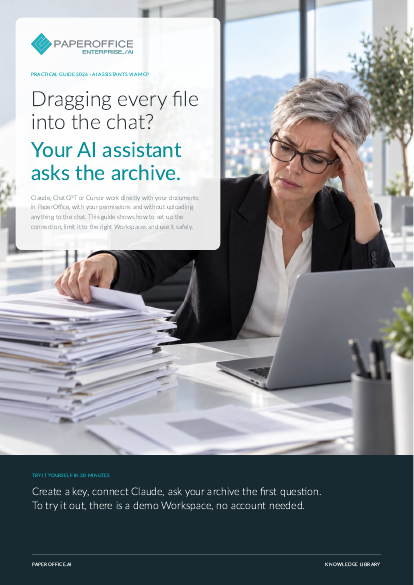
Dragging every file into the chat? Your AI assistant asks the archive. This guide shows how to set up the connection, limit it to the right Workspaces and use it safely.
This guide is available in 21 languages; on this page you download the English version. Free, no registration.
Trusted by leading companies worldwide








OEM PARTNERSHIP

Sole official DMS partner for QNAP: Classic app, AI BYOS.
More

Sole official DMS partner for ASUSTOR: Classic app, AI BYOS.
MoreTeams with Claude or ChatGPT: You want to answer questions about contracts, invoices, and files directly in the chat. IT and data protection: You create keys, limit access and block it when necessary. Management: You decide which assistants are permitted to work with which data.
Questions and answers
Only those its key may see. With a group token, those are the Workspaces of that group.
Only if its rights allow it. Set writing and deleting tools in the client to“Needs approval”; then it asks before every deletion.
In the API Keys list, open the key and choose“Blocked”. The next call is rejected. You block your own last user token after you have created a second one.
Our experts are happy to help you choose the right solution.
Request consultation

Integrator and Reseller can be combined. Referral by invitation.
View the partner program
AI-DMS
Documents. Intelligence. Real impact.
PaperOffice AI is the AI-DMS. Four functional areas on one DMS foundation, with three ways in.
Features, modules and benefits at a glance.
Capture, organize, search and collaborate on documents.
Plug into your systems and AI workflows.













