

Scan, Sign & AI Chat
Mobile App
The mobile app pairs with your account via QR code and brings scanner, signature, chat and documents to your phone.
DownloadDatasheetsPDF · EN4 pages
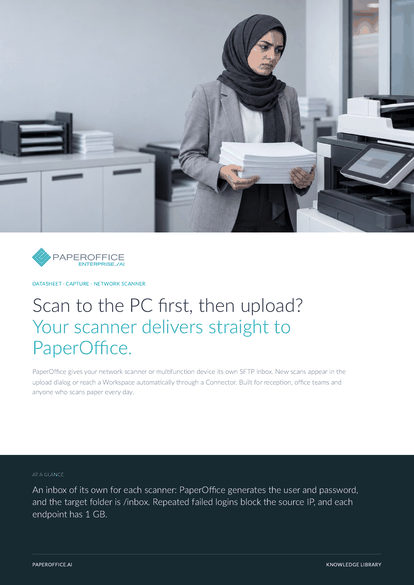
Scan to the PC first, then upload? Your scanner delivers straight to PaperOffice. PaperOffice gives your network scanner or multifunction device its own SFTP inbox.
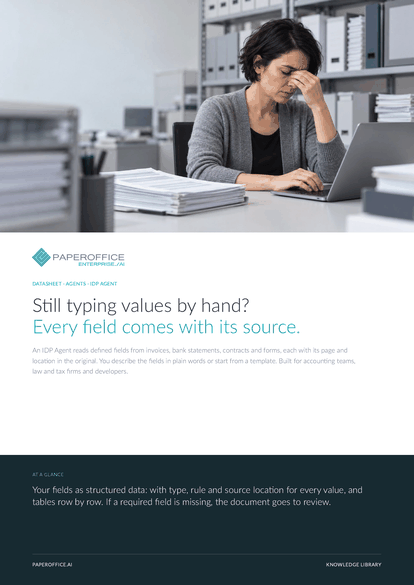
This datasheet is available in 21 languages; on this page you download the English version. Free, no registration.
Trusted by leading companies worldwide








OEM PARTNERSHIP

Sole official DMS partner for QNAP: Classic app, AI BYOS.
More

Sole official DMS partner for ASUSTOR: Classic app, AI BYOS.
MoreBuilt for reception, office teams and anyone who scans paper every day.
Questions and answers
Network scanners and multifunction devices that send scans to a server via SFTP with a user and password. Older devices use legacy FTP. Send a test scan to get started.
On the endpoint's Action tab, “Provide as scanner source in the uploader” must be switched on. For newly created endpoints it is on by default.
After a successful upload or import, PaperOffice deletes the file in the inbox, or keeps it if you choose. After 24 hours at the latest, the inbox clears itself.
Yes. As the account owner, you can show the endpoint's host, user and password again in the app at any time, for example for a second device.
Our experts are happy to help you choose the right solution.
Request consultation

Integrator and Reseller can be combined. Referral by invitation.
View the partner program
AI-DMS
Documents. Intelligence. Real impact.
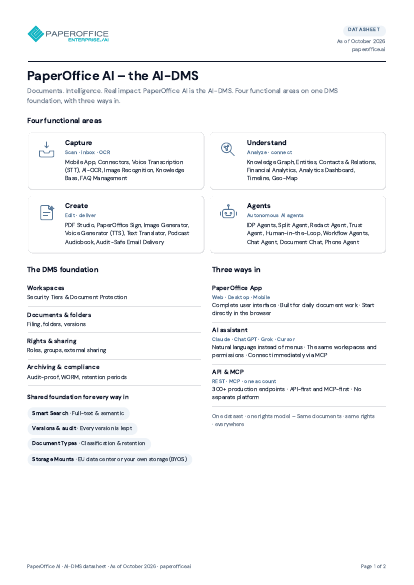
PaperOffice AI is the AI-DMS. Four functional areas on one DMS foundation, with three ways in.
Features, modules and benefits at a glance.
Capture, organize, search and collaborate on documents.
Plug into your systems and AI workflows.
No installation, ready in seconds.
Search all tools