Scan, Sign & AI Chat
Mobile App
The mobile app pairs with your account via QR code and brings scanner, signature, chat and documents to your phone.
A supposed supplier invoice with new bank details goes straight into quarantine. The film shows how: the AI-DMS tier, the audit with twelve checks, the review task, duplicates and revision-secure storage.
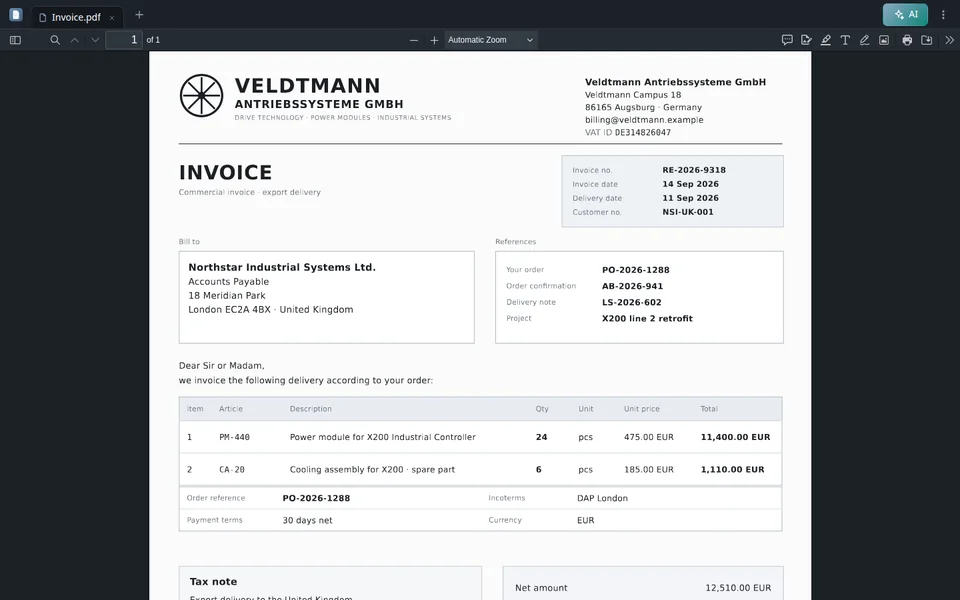
Hello and welcome to the PaperOffice AI Academy. This film is about audit and quarantine: how PaperOffice detects suspicious documents and stops them before anyone pays a false invoice. First, the result. This invoice supposedly comes from Veldtmann, a well-known supplier, and demands that you pay only to a new bank account starting immediately. PaperOffice reviewed it, classified it as critical, and immediately placed it in Security quarantine. Editing, downloading, and deleting are locked until an admin makes a decision. We’ll go through it step by step: the workspace’s AI-DMS tier, quarantine, poor scans and fields, the audit control center, the review task, duplicates, and finally revision-secure storage.
How much PaperOffice does with your documents is set per workspace, with the AI-DMS tier. Storage only keeps the files without automatic processing. Basic turns them into a searchable archive, with text recognition, classification, and keywords. Premium also reads the business fields, detects relationships between documents, and reports duplicates. Ultra goes the deepest: Vision recognition reads tables, forms and barcodes, supplemented by Knowledge Graph and cross-document reasoning. And in Ultra, the audit is included: PaperOffice checks every document with twelve controls and places suspicious documents in quarantine. For this video, we create the Workspace Audit-Demo with Ultra. Before creating it, PaperOffice displays the most important settings once again for your review. If everything looks correct, we create the Workspace.
Now for the serious case. We upload an invoice from Veldtmann, a well-known supplier. At the bottom of the invoice, there is a note: Please use only the new bank details from now on; the previous ones are no longer valid. You can already see in the list that something’s wrong: security quarantine, audit high, and HITL required, meaning a person has to review it. In the Audit tab, you can see why. The audit flags a fraud risk: the invoice explicitly says to use a new bank account and that the previous one is no longer valid. That’s a classic sign of email fraud, for example when someone has taken over a mailbox. Severity eight out of ten, critical. Every finding comes with a recommendation. Here: don’t process the payment based on the document alone, and contact the supplier using verified contact details from earlier correspondence to confirm the change. There’s a second finding too: a payment risk, because the invoice tells you to use a new IBAN and to disregard the previous bank details. From severity level seven onwards, PaperOffice immediately places the document in quarantine. Editing, moving, downloading and deleting are locked; the remaining tabs are inactive. You can still view the connections, but only in read-only mode.
In everyday practice, documents rarely arrive in perfect condition. We upload three typical cases: a freight invoice with a coffee stain, a delivery note from a dot-matrix printer, and an invoice that someone photographed with their mobile phone. PaperOffice also extracts these documents. Each one receives a descriptive name, a brief summary, and its data fields: document number, issuer, recipient, reference, and amounts. In the freight invoice from Britannia Freight, the coffee stain is right in the middle of the page. The document number, sender, and total amount from both line items are still correctly captured in their respective fields. Hover over a field with your mouse, and the view on the left jumps directly to the spot in the document from which the value originates. This way, you can immediately see whether it is correct. The delivery note from the dot matrix printer has pale, dotted characters on gray continuous paper. The delivery note number, order number and addresses still come through clearly. And the mobile phone photo: taken at an angle on a wooden table. PaperOffice reads it like a scan, with invoice number, issuer, tax ID and the amount of nineteen hundred euros. A poor scan alone is not yet an audit finding. All three documents have passed the audit without any critical signals.
If a value is incorrect or should be different, you can change it directly in the field: just click into it, modify the value, and you’re done. PaperOffice saves the change immediately, and the overview then shows who last changed the document and when. A tamper-proof change history comes with revision-secure storage. More on that at the end.
Back to the invoice with the new bank details: you cannot simply delete it. An administrator must make a decision first. This ensures that no evidence disappears before anyone has reviewed the case. To make sure no case slips through, filter your search by Audit: audit required, high audit risk, HITL required, or security quarantine. With security quarantine, exactly one invoice remains in our workspace. In the documents hub, every workspace shows how many documents are currently in quarantine. The With quarantine filter shows only those workspaces. In the settings, you can define whether PaperOffice automatically places documents in quarantine upon a critical audit finding, and at which severity level. By default, this is set to seven out of ten.
The audit control center sums it all up: two findings, two reviews open, twelve controls, maximum severity eight. Next to it, the fraud risk analysis in full sentences. Below, you’ll see all twelve controls: financial integrity, tax compliance, fraud risk, geographic mismatch, data consistency, missing data, plausibility check, payment risk, visual authenticity, regulatory compliance, sensitive data exposure, and threatening content. Two are flagged, with high risk and no green check mark. Below are the findings with severity, reasoning, and recommendation. You can mark each finding as reviewed or create a task from it. For your records or for your tax advisor, you can export the result as a PDF report, optionally along with the original document.
With a single click, you turn the finding into a review task. It lands with the Human in the Loop tasks, where your team processes it. Audit tasks give you four options. Complete review, when the finding has been checked. No action required, when there’s no risk. Not workable, and the finding stays open. Or forward the task to someone else. When a bank account changes, the rule is to call back the supplier using the number you already know, never the one from the new invoice. Record your findings as a comment and complete the review. Only an admin can lift the quarantine, after an explicit confirmation. Here, the bank change wasn’t genuine. So we cancel, the document stays in quarantine, and nobody pays into the wrong account.
A classic case: the same invoice arrives twice, once as an original and later again as a scan. Starting from AI-DMS Premium, PaperOffice recognizes this. Above the second document, it displays: possible duplicate, along with the name, Workspace, and date of the original. The reasons are right there: same document number, same issuer, same amount and same reference. The audit also flags the duplicate as a finding with severity level five. This is below the threshold of seven. So the document does not go into quarantine, but a person should review it. With one click, you open the original and compare. If it really isn’t a duplicate, mark it with Not a duplicate.
For documents you have to keep, there’s revision-secure storage. Above the document, it still says: not revision-secure. We activate it in the Revisions tab: choose the country and document type, which sets the retention period, here six years for a UK VAT record. It starts immediately, and PaperOffice shows the calculated end date. After that, the document is stored unchangeably and can’t be deleted or moved until the retention period ends. PaperOffice logs whatever happens to the document, tamper-proof, in the Revisions tab. This is irreversible by design. At any time, you can then create a compliance certificate: a PDF with proof of integrity, a QR code, and a public verification link. If a legal dispute or tax audit is underway, an admin can additionally set a legal hold via the API, for example from your own workflow. The document will display this immediately and remain retained beyond the deadline until the hold is lifted. To sum up: choose AI-DMS Ultra for important documents, and the audit checks every document with twelve controls. Critical findings put the document into quarantine immediately, and only an admin may release it, after a review. PaperOffice reads poor scans too, you check every value at its source, PaperOffice reports duplicates on its own, and you store important documents revision-secure. Until next time in the PaperOffice AI Academy.


Integrator and Reseller can be combined. Referral by invitation.
View the partner program
AI-DMS
Documents. Intelligence. Real impact.
PaperOffice AI is the AI-DMS. Four functional areas on one DMS foundation, with three ways in.
Features, modules and benefits at a glance.
Capture, organize, search and collaborate on documents.
Plug into your systems and AI workflows.
No installation, ready in seconds.
Search all tools