Scan, Sign & AI Chat
Mobile App
The mobile app pairs with your account via QR code and brings scanner, signature, chat and documents to your phone.
Invoices over 5,000 euros wait for approval, and the agent marks smaller ones as reviewed by itself. The film shows the whole way: a description in your own words, the start event, the Prompt Studio, the dry-run, automation and executions.
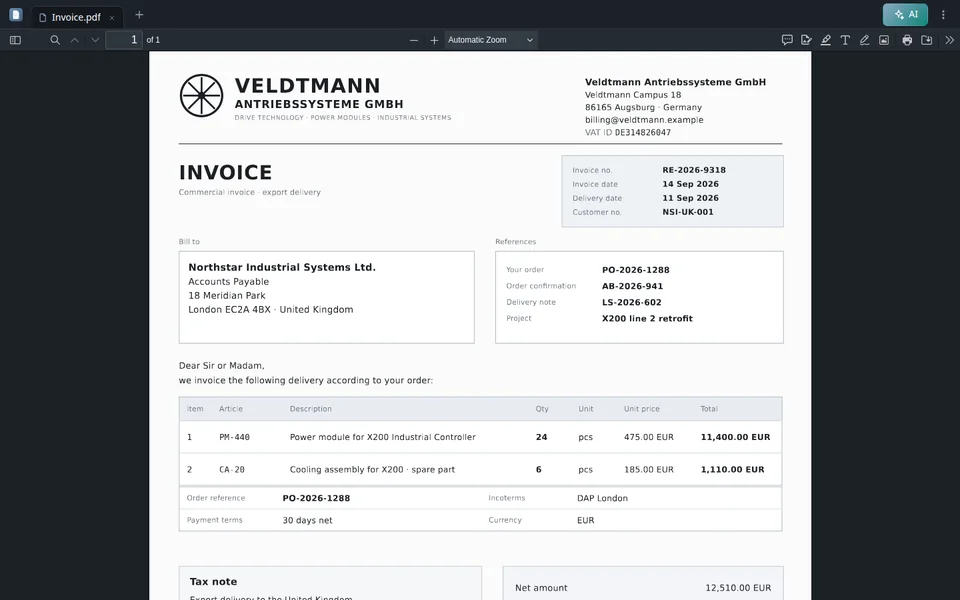
Hello and welcome to the PaperOffice AI Academy. This video is about Workflow Agents. With it, you describe a process in your own words, and PaperOffice executes it automatically for every matching document. No one should pay an invoice for twelve thousand euros before it has been approved. But submitting every invoice manually takes time. First, the result. Just now, two invoices arrived from Veldtmann. Our Workflow Agent has already marked the smaller one for two thousand three hundred fifty euros as reviewed, without any further inquiry. For the large amount of over twelve thousand euros, it stopped. Now an approval task with supplier, invoice number, and amount is waiting. After you approve it, the agent continues and also marks this invoice as reviewed. Here is how you can build it yourself: create a Workflow Agent, select the start event, describe the process in Prompt Studio, test it safely, turn on automation, and review the executions.
A Workflow Agent is an AI agent that processes your documents according to an instruction. You write the instruction not as a program, but in plain language. Your Workflow Agents can be found under Workflow AI. The list shows for each agent when it starts, whether automation is on, and which document intelligence it requires.
For the test, we will need the POFID of a small invoice, which is the document identifier. This is done with one click in the list: select the invoice, go to Actions, and choose POFID. Now the new Workflow Agent. It gets a name, Invoice approval, and a description in plain sentences: invoices over five thousand euros should wait for an approval, smaller ones are marked as reviewed. Under Document intelligence, you define how thoroughly a document must be read out beforehand. Premium is pre-selected and already reads the amount, supplier, and invoice number on its own. You determine exactly which fields are read out using IDP Agents; there is a separate episode for that. Then the start event. There are six of them. Manual only means: The agent starts only when you trigger it. After AI-DMS has completed, it starts with every new document as soon as it has been read out. Additionally, it can start when a metafield changes, when someone completes a task, when an approval is finished, or as soon as a document is fully signed. After AI-DMS has completed, the agent starts as soon as a new invoice has been fully extracted. Under Filters, we specify which documents this applies to: only in the Workspace Workflow-Demo and only for the document type Invoice. We don’t need to worry about repeated triggers here. This option prevents the same agent from starting multiple times in quick succession for the same document. Click Save, and the Prompt Studio will open.
This is the Prompt Studio. On the left, you can see our description. By clicking Create agent instruction, PaperOffice generates a precise instruction for the agent. In the center you can see what has been understood: the task in one sentence, the recognized rules and the fields involved. Below that, you will see why the instruction is structured this way and how the agent knows when it is finished. Take your time to read through it carefully. If anything differs from what you intended, edit the description and regenerate the instruction. The tool flow shows which tools the agent uses: it reads the document and, if necessary, changes a field. It does not receive any tools other than those specified in its instructions. On the right is the completed instruction in English so that the agent understands it clearly. Everything looks good; save and test.
We test with a dry run: the agent works on a real document, but changes nothing. We paste in the POFID of the small invoice and start. Dry run successful. The agent has found the amount, one thousand nine hundred and eighty euros, below the threshold, and would mark the invoice as reviewed. Below you can see each step: First, it read the document, then it prepared the change. It was not executed; that was just a simulation. Only after a successful test can you turn on the automation. This way, no agent runs on your documents that you haven’t tried out first.
So we switch on Automation mode. From now on, the agent reacts to the start event automatically. There is also the Execution approval setting. If it is turned on, the agent asks a person before every change, for each document. We only want to be asked for large invoices, so we have placed our approval in the description.
Now for the real test. Two new invoices from Veldtmann are coming in: one for two thousand three hundred fifty euros and one for twelve thousand eight hundred twenty-five euros. First, the AI-DMS processing reads in the documents, and then our agent starts automatically for each invoice individually. I am fast-forwarding. In the Document Status column, you can see the result: the small invoice has already been reviewed. For the large one, nothing is displayed yet because the agent has paused here. The Automation column also shows it: the hourglass next to Workflow means it is waiting for approval. Under Human In The Loop Tasks, the invoice approval now waits with supplier, invoice number and amount. In the task, you can see the invoice itself on the left and the details on the right. It is currently assigned to us. If someone else should decide, such as management, simply forward the task. We approve it with a short comment. The agent then continues its work. Let’s take a look back at the document list: now the large invoice has also been reviewed.
You can see what the agent has done in its executions. The fastest way is via the menu in its row. Here you can see the runs of this agent, all completed, each with a document, start event and duration. In detail, one sentence states what the agent did: approval received, status set to reviewed. Then comes the entire process: first the instruction as step zero, then each step of the agent with its result, and finally the fields that it has changed. This way you can trace back every decision later.
A few more tips. Write the description as if you were explaining the process to a new colleague: with a clear threshold, the fields involved, and what the agent is allowed to change. Define the scope of your agent by using filters to specify which documents it applies to. Test every revised description first in dry run mode. For sensitive workflows, additionally enable execution approval and check the executions regularly during the initial days. In summary: you describe a Workflow Agent in your own words. You select the start event and use filters to define which documents it applies to. This creates the instruction in Prompt Studio, you test safely in dry run, and only then do you enable automation. Where a person should decide, the agent pauses and waits for approval. In the next video, we will connect PaperOffice with the outside world: email inbox, storage and scanner, your own NAS, API keys and AI assistants like Claude and ChatGPT. Until next time at the PaperOffice AI Academy.


Integrator and Reseller can be combined. Referral by invitation.
View the partner program
AI-DMS
Documents. Intelligence. Real impact.
PaperOffice AI is the AI-DMS. Four functional areas on one DMS foundation, with three ways in.
Features, modules and benefits at a glance.
Capture, organize, search and collaborate on documents.
Plug into your systems and AI workflows.
No installation, ready in seconds.
Search all tools