Scan, Sign & AI Chat
Mobile App
The mobile app pairs with your account via QR code and brings scanner, signature, chat and documents to your phone.
A seven-page batch scan becomes five documents with document type, date and sender in the name. The original scan is kept.
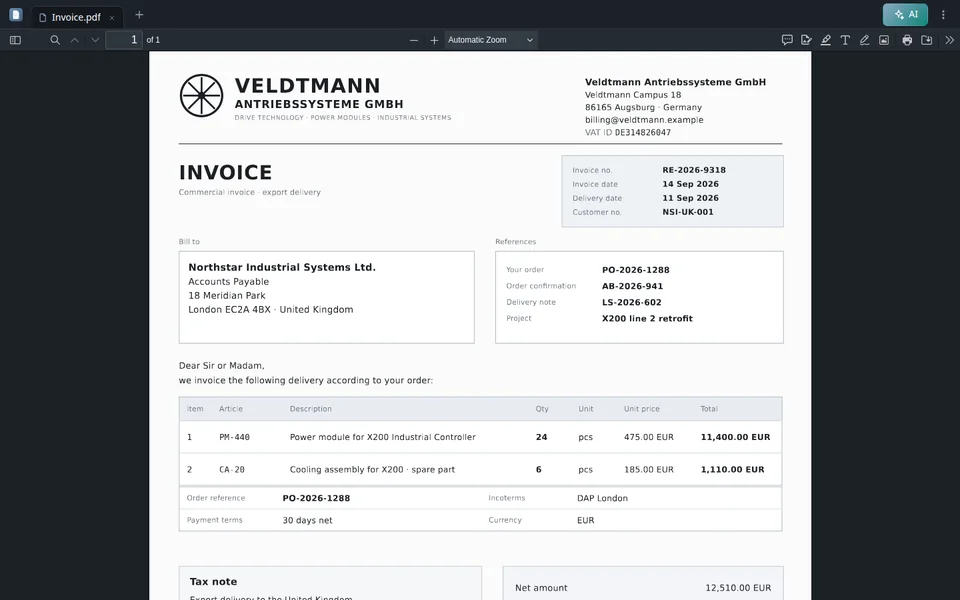
First issue: In the mailroom, an entire stack is scanned in one go. This results in a seven-page PDF containing a purchase order, delivery note, invoice, and more, including a separator sheet. For this purpose, we create a Split Agent. We name it Split mailroom and select the level Premium. As a result, the individual parts will be assigned not only numbers but also the document type, date, and sender in their names. In the Split method tab, you define how the agent recognizes where a new document begins: automatically, by a cover page, by a separator code, by a change in document type, after a fixed number of pages, per person or file, or with your own rule. We leave it set to Automatic. Then PaperOffice detects the boundaries based on content, sender, date, and document type; separator sheets are possible but not required. As the target, we select the existing Workspace Mailroom 2026. Now for the batch scan: select the items in the list, then click Actions, Split and Run via Split Agent. Click on Start, and the agent will handle the rest in the background. After about a minute, the monitor displays the created documents: five documents have been generated from seven pages, each with its document type, date, and sender in the filename. The separator sheet has been removed, and the original scan is preserved. A quick glance at the list is still worthwhile: If the separation is correct, you can proceed as usual with data fields, workflows, and everything else. A look at one of the new documents, the order to Veldtmann: PaperOffice has extracted it like any other document, including title and a summary with amount.


Integrator and Reseller can be combined. Referral by invitation.
View the partner program
AI-DMS
Documents. Intelligence. Real impact.
PaperOffice AI is the AI-DMS. Four functional areas on one DMS foundation, with three ways in.
Features, modules and benefits at a glance.
Capture, organize, search and collaborate on documents.
Plug into your systems and AI workflows.
No installation, ready in seconds.
Search all tools