Scan, Sign & AI Chat
Mobile App
The mobile app pairs with your account via QR code and brings scanner, signature, chat and documents to your phone.
Search four places at once, ask questions instead of guessing keywords, find numbers, amounts and IBANs, and keep everything organized with filters, virtual folders, document types, connections and versions.
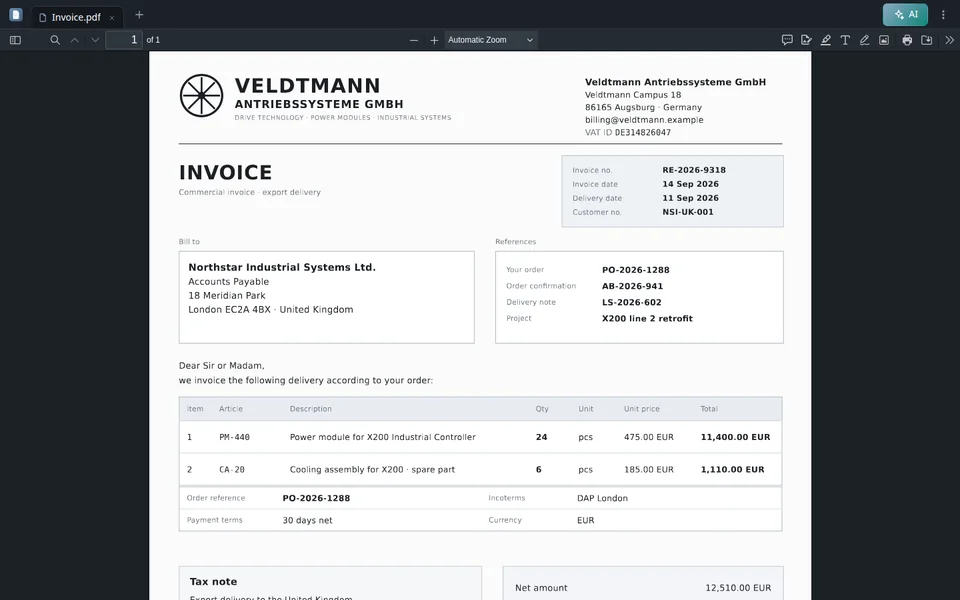
Hello and welcome to the PaperOffice AI Academy. This video is about finding and organizing: how you can locate every document in seconds without having to maintain folder structures. First, the result. We simply ask: Which invoices did Veldtmann send? PaperOffice understands the question, finds the relevant documents, and highlights exactly where the answer is located within the document. Everything is still well organized: in virtual folders that the AI suggests itself, and with connections between documents and suppliers. Here is how we proceed: first the search, then the search by meaning, numbers and amounts, filters and groups, virtual folders, document types, connections, and finally the timeline and versions.
You search in the search box at the top. On the left, you switch between Ask Agent and Search. We stay with Search and search here in this Workspace for Veldtmann. PaperOffice searches simultaneously in four places: in the file name and data fields, in the recognized text, in the recognized companies, persons and amounts, and by meaning. This results in a single list. At the very top, you will see the best match. The relevance indicator shows where a result comes from and how well it fits your search. Open a result, and the preview jumps to the hit location, highlighting it on the document. Use the arrows to move to the next hit and navigate through all occurrences. With a single click, you search not only in the Workspace but across all Workspaces. And your recent searches are always ready for you.
You don’t need to know which word appears on the document. Simply ask a question, for example: Which contracts are automatically renewed and what is the notice period for termination? You will find the relevant contracts, even if they use completely different wording. The relevance indicator shows that these are matches based on meaning. The rule of thumb: One or two keywords are searched literally and lightning-fast by PaperOffice. Full sentences and questions are understood by their meaning. The search by meaning is available in workspaces with level AI-DMS Premium or higher. You select the level individually for each workspace.
You can find numbers directly: an invoice number, a purchase order number, or a delivery note number, exactly as they appear on the document. PaperOffice recognizes an amount with separators and currency as an amount. This way, you can immediately find all documents related to the process for 18,500 euros: order, invoice, and payment. And entering an IBAN without spaces will bring up every document that contains this bank account number. This is particularly handy if a supplier suddenly sends you new account details.
Filters narrow down the list. We are only showing invoices that have been added in the last 30 days. Even faster: Click on a value in the list, such as a document type or keyword, to filter the list accordingly. Grouping reorganizes the list, for example by sender. This way, you can see at a glance which documents come from which supplier. You can save a combination that you often need as a view. And with one click, you can reset all filters.
If you prefer to think in folders, you can switch on the folder view. No one creates folders manually: while processing, the AI suggests suitable storage paths for each document and integrates them into your existing structure. In the document, you can see the suggestions under Storage Paths. You can add additional paths, for example, a folder for the annual financial statements. The great thing is that the folders are virtual. A document can be in multiple folders at the same time without being duplicated.
The AI automatically identifies the type of document: invoice, delivery note, contract, and many more. You can view the list under Document Types. If you are missing a type, create one—for example, Maintenance report. With a brief instruction to the AI, describe how it should recognize this type. If the type for classification is active, the AI will automatically assign new documents from now on. We will show you which agent reads the data from it in the video about IDP Agents.
Every document knows who it’s dealing with. Under Connections, you will find the business partner the AI identified from the letterhead. You can link documents by dragging them—for example, drag the delivery note onto the invoice and select “Belongs to” as the type of connection. From now on, you can instantly navigate from one document to the other. And under Organizations, you can see each supplier with all its documents across all Workspaces.
The timeline organizes documents by date, for example by due date. This way, you can see what is coming up this month. If a contract changes, upload the amendment as a new version. The document remains the same, with all its connections intact, and the previous version is preserved. Compare versions shows how similar two versions are, which pages have changed, and summarizes the changes in a few sentences. And if the old version was indeed the correct one, you can restore it as a new version—nothing is lost.
That was finding and organizing: a search for everything, questions instead of keywords, filters and groups, virtual folders, custom document types, connections, timeline and versions. In the next episodes, we will be looking at the IDP Agents and how you can securely share documents via the browser and by phone. Until next time in the PaperOffice AI Academy.


Integrator and Reseller can be combined. Referral by invitation.
View the partner program
AI-DMS
Documents. Intelligence. Real impact.
PaperOffice AI is the AI-DMS. Four functional areas on one DMS foundation, with three ways in.
Features, modules and benefits at a glance.
Capture, organize, search and collaborate on documents.
Plug into your systems and AI workflows.
No installation, ready in seconds.
Search all tools