Scan, Sign & AI Chat
Mobile App
The mobile app pairs with your account via QR code and brings scanner, signature, chat and documents to your phone.
Share a Workspace with your accountant: by email invitation with access in the browser, or by phone, where the caller signs in with a PIN and the agent answers from the shared documents. Plus managing and revoking shares.
Hello and welcome to the PaperOffice AI Academy. This video covers sharing: how you can securely share documents via a browser link or by phone. First, the result. Our accountant sees the Workspace Accountant 2026 in their own PaperOffice account, with exactly the documents we have shared. And when they are on the go, they can call in, log in with their PIN, and get the information directly from the records. We will guide you through this step by step: preparing the Workspace, sharing via email and how the recipient accepts it, the phone agent, phone sharing, making a call, managing and revoking shares, and finally, some practical tips.
A complete Workspace is always shared. Therefore, we create a separate one for our accountant and only place the documents there that he should see. Shares are only available for Workspaces of type Business. Six documents are sufficient for our example: invoices, a credit note, and a delivery note. Anything that later goes into this Workspace will be automatically visible to the recipient.
You set up the sharing directly in the Workspace: Edit, then the Sharing tab, then New external share. We select email as the channel. Then the accountant’s email address. With this check box, only a PaperOffice account with exactly this address can accept the invitation; forwarding the link alone is not sufficient. At document access, you define what the recipient is allowed to do: view and download only, or additionally upload documents. Since our accountant needs to be able to return documents to us, we allow uploading. And you decide how long the share remains valid: without an expiration date, for 7, 30, or 90 days, or for one year. For the annual closing, 30 days are sufficient for us. Save and done. The share is now listed as pending until the accountant accepts the invitation.
The accountant receives an email: invited to the Workspace Accountant 2026, with the button Accept invitation. If they are logged in to their own PaperOffice account, this single click is all it takes to grant access. So, they need their own account, but no PIN for sharing. From now on, the shared Workspace will appear in their account, clearly marked. They can view the documents along with all extracted data and download them, within the scope of the permissions you have granted. Since we have allowed uploading, our accountant can also send something back to us, for example an invoice that was sent directly to him. He drags it into the shared Workspace, and that’s it. And what about us? The invoice is now in our Workspace Accountant 2026, processed just like any other document. No one needs to send anything back and forth via email.
For sharing via phone, you’ll need a phone agent. Under Conversation AI, we’ll create a new one and name it Northstar Phone Share. It is important to note the role: Protected agent. Then callers must log in before the agent can share anything from your documents with them. Under Telephony, you activate the agent and select the country. PaperOffice provides a phone number for this purpose. To do this, you select the language and voice of the agent. In the How should the agent behave? field, describe in your own words its task, tone, and clear boundaries. Our agent should answer questions about the documents in a friendly and concise manner, always stating amounts with their currency. Under Knowledge, you specify from which Workspaces the agent is allowed to take its answers, here only from Accountant 2026.
Now for the share itself, again on the Workspace: New external share, this time using the phone channel. The agent is already entered. You enter the accountant’s mobile number and a PIN consisting of 4 to 6 digits. Only someone calling from this number who knows the PIN can access the documents. Both are blurred in the video for privacy reasons. If the caller needs a document, PaperOffice sends it to this fixed email address: as a link to a password-protected PDF, with the password included in the same email. The caller cannot specify any other address over the phone. If someone calls from an unknown or anonymous number, they will reach the reception desk without access to documents. And after 3 incorrect PINs, sharing is blocked for 15 minutes.
That’s what it sounds like on the phone. The accountant calls the number, enters their PIN, and simply asks.
Simulated call:
Phone agent: Welcome to PaperOffice AI. To sign in, enter your PIN and press the hash key. For reception, press the star key.
Accountant: (PIN entry)
Phone agent: PIN confirmed. One moment please.
Phone agent: You have access to Workspace “Accountant 2026”. What should I look up in the archive?
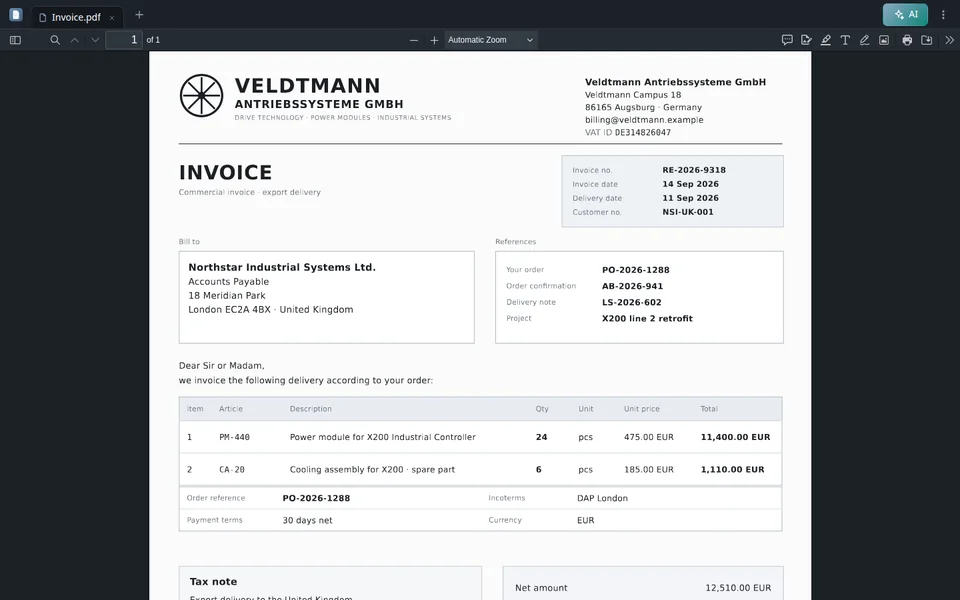
Accountant: Which Veldtmann invoices were due in September?
Phone agent: Two: one for €2,850 due on 6 September and another for €47,500 due on 18 September.
Accountant: How much is still outstanding on the invoice for 47,500 euros?
Phone agent: There’s a credit note from the 21st of August for €950 against this invoice. The outstanding balance is €46,550.
Phone agent: Shall I send the document to your email address?
Accountant: Yes, please.
Phone agent: I have sent the document to your configured email address.
Accountant: Thanks, that’s all.
The agent searches within the shared Workspace and responds using the documents: it provides the due dates from the two invoices and the outstanding amount from the credit note. It has no access to other Workspaces during this call. At the caller’s request, the agent sends the document as a protected PDF to the stored email address.
You can keep track of everything in the Workspace overview: Under Options, you can see how many Workspaces you have shared yourself and how many others are sharing with you. The shares of a Workspace are displayed in the Sharing tab: who has access, through which channel, and until when. With Actions, you can modify access permissions, for example, to determine whether the recipient is allowed to upload files. And when the collaboration ends, revoke the share. This takes effect immediately: the Workspace disappears from the recipient’s view, and the next call goes to reception. Here’s what it looks like for the accountant afterward: The Workspace has disappeared from their account, and the documents are no longer accessible.
Finally, four practical tips. First: one Workspace per recipient and purpose. This way, everyone only sees what they are supposed to see, and you can revoke a share without disturbing others. Secondly, set an expiration date for each share. Without one, a share will continue indefinitely, even if it’s no longer needed. Thirdly: Share the PIN for the phone share via a different channel than the phone number, preferably in person. And fourthly: regularly check the list of active shares and revoke any that are no longer needed. To summarize: create a separate Workspace for each recipient. Share it via email with a PaperOffice account, including permissions and validity period. The recipient logs in by phone using their phone number and their PIN, then simply asks their question. And you can modify or revoke any sharing at any time. Until next time in the PaperOffice AI Academy.


Integrator and Reseller can be combined. Referral by invitation.
View the partner program
AI-DMS
Documents. Intelligence. Real impact.
PaperOffice AI is the AI-DMS. Four functional areas on one DMS foundation, with three ways in.
Features, modules and benefits at a glance.
Capture, organize, search and collaborate on documents.
Plug into your systems and AI workflows.
No installation, ready in seconds.
Search all tools